Removing Duplicate H1 and Link to Attachments on Zendesk Articles
| Article #: GEN1039Z | Product: Flare | Version: 2025 r2 |
Summary:
This article will provide step-by-step instructions on the following subjects in Zendesk.
How to remove:
1. Duplication of Headings in a Zendesk Article
2. Visible link of the log file which every end-user can download.
Full Description:
In Zendesk Knowledge, the title in the head tag is being read by ZD and being displayed as the H1 after being published to Zendesk from Flare. This causes a duplication since the topics from Flare would have an H1 as the heading. The first heading of a topic automatically becomes the title of the document (added as metadata).
The second issue is that ZD attaches a link to the log file which end-users can download.
Solution:
The solution to this is to comment out the heading and the link to the attachments via the Zendesk Themes. Here are the steps to implement this fix:
1. Go to Knowledge Admin > Customize Design (with this icon on the left hand menu  )
)
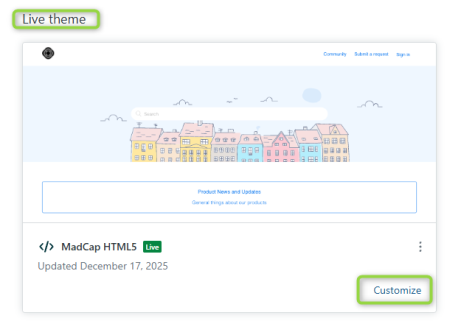
2. Click Customize in the Live Theme section.
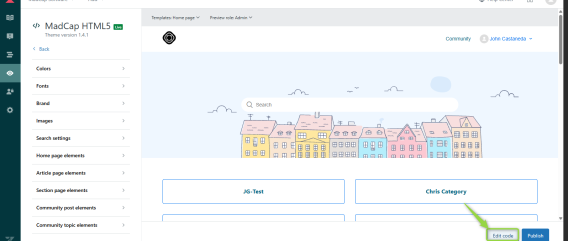
3. In the bottom right-hand corner, click Edit Code.
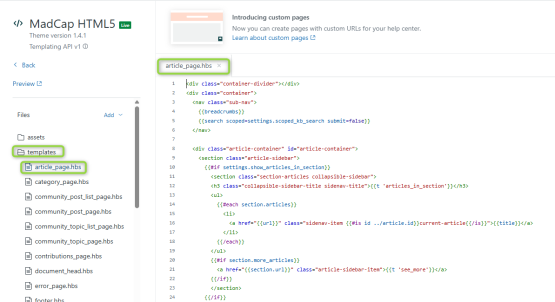
4. Select the templates folder > click on article_page.hbs file which should open the file on the main window.
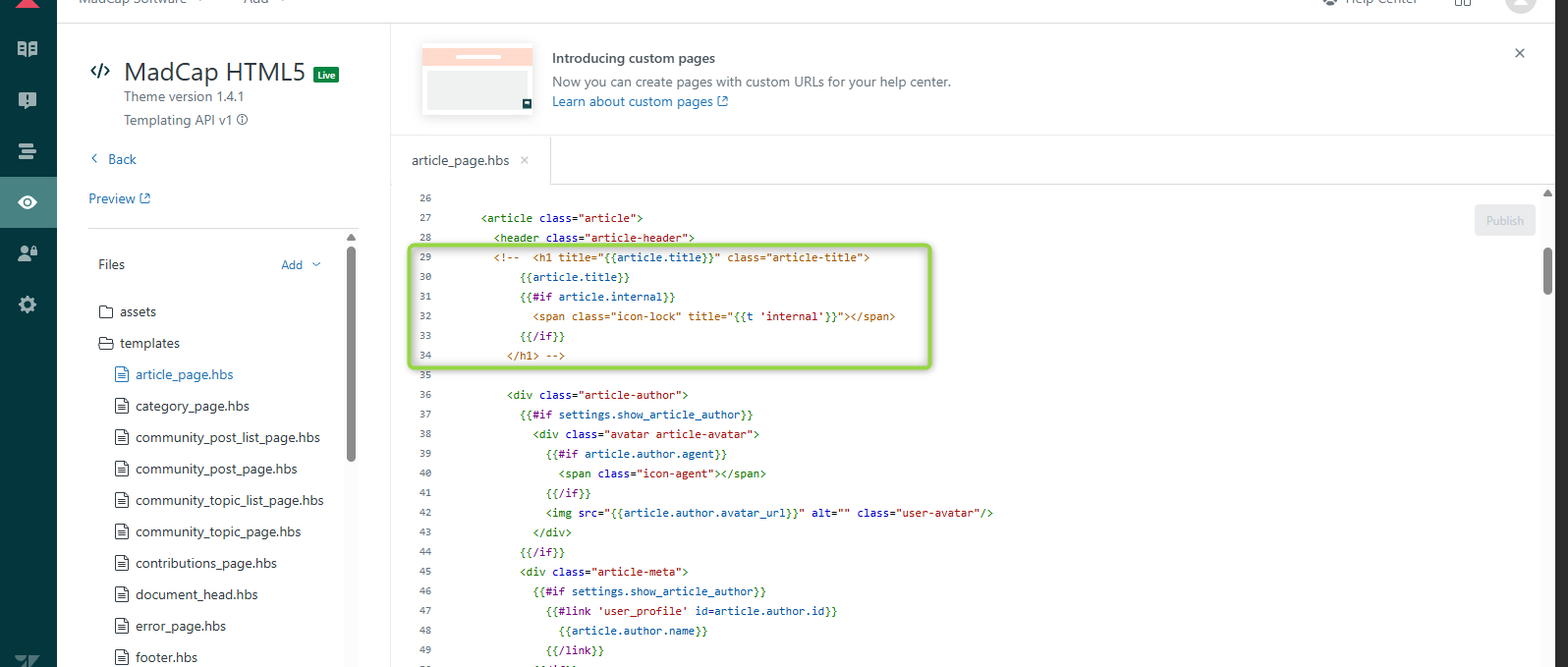
5. Add the opening comment tags ('<!--') in the beginning of line 29. Then, add the closing comment tags ('-->') at the end of line 34.
6. Add the opening comment tags ('<!--') in the beginning of line 72. Then, add the closing comment tags ('-->') at the end of line 84.
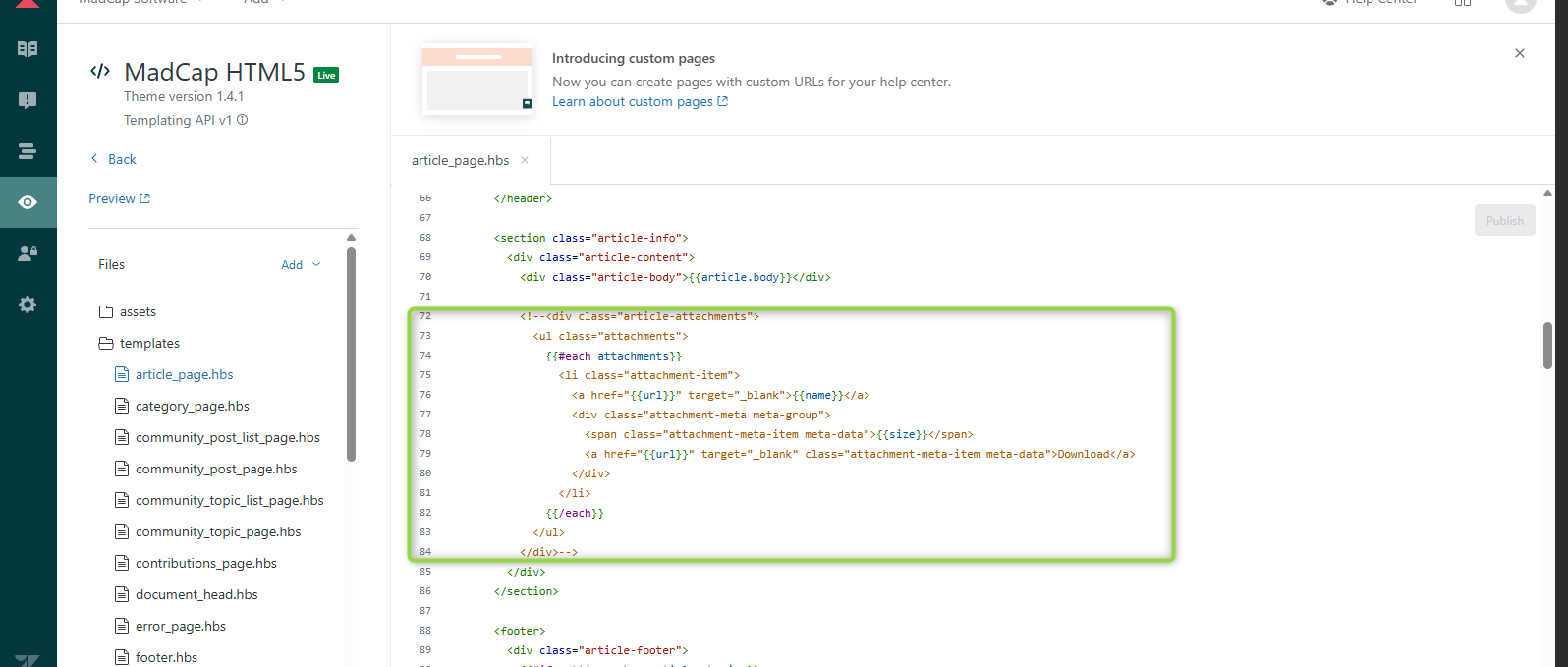
7. Click Publish or hit CTRL + S on your keyboard.
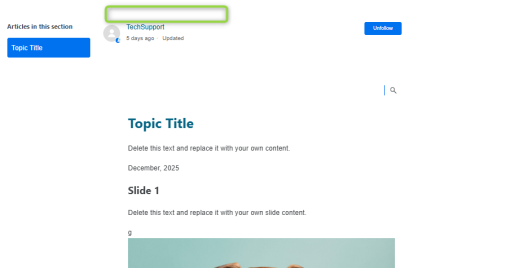
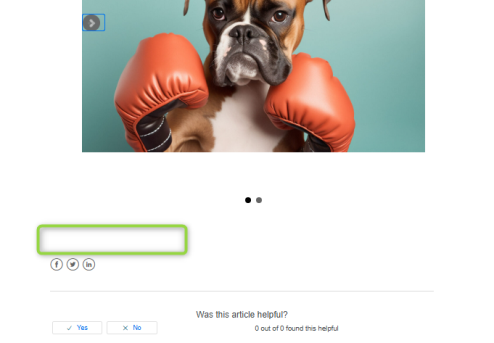
This should remove the redundant H1 and the link to the log file attachment.
Attribution:
|
Last updated: Tuesday, September 22, 2026 |
Author: John Castaneda |
Contributions by: John Castaneda Marvin Mallari |